
Availability Hours
Set your regular weekly opening hours for customer bookings
Managing Availability Hours
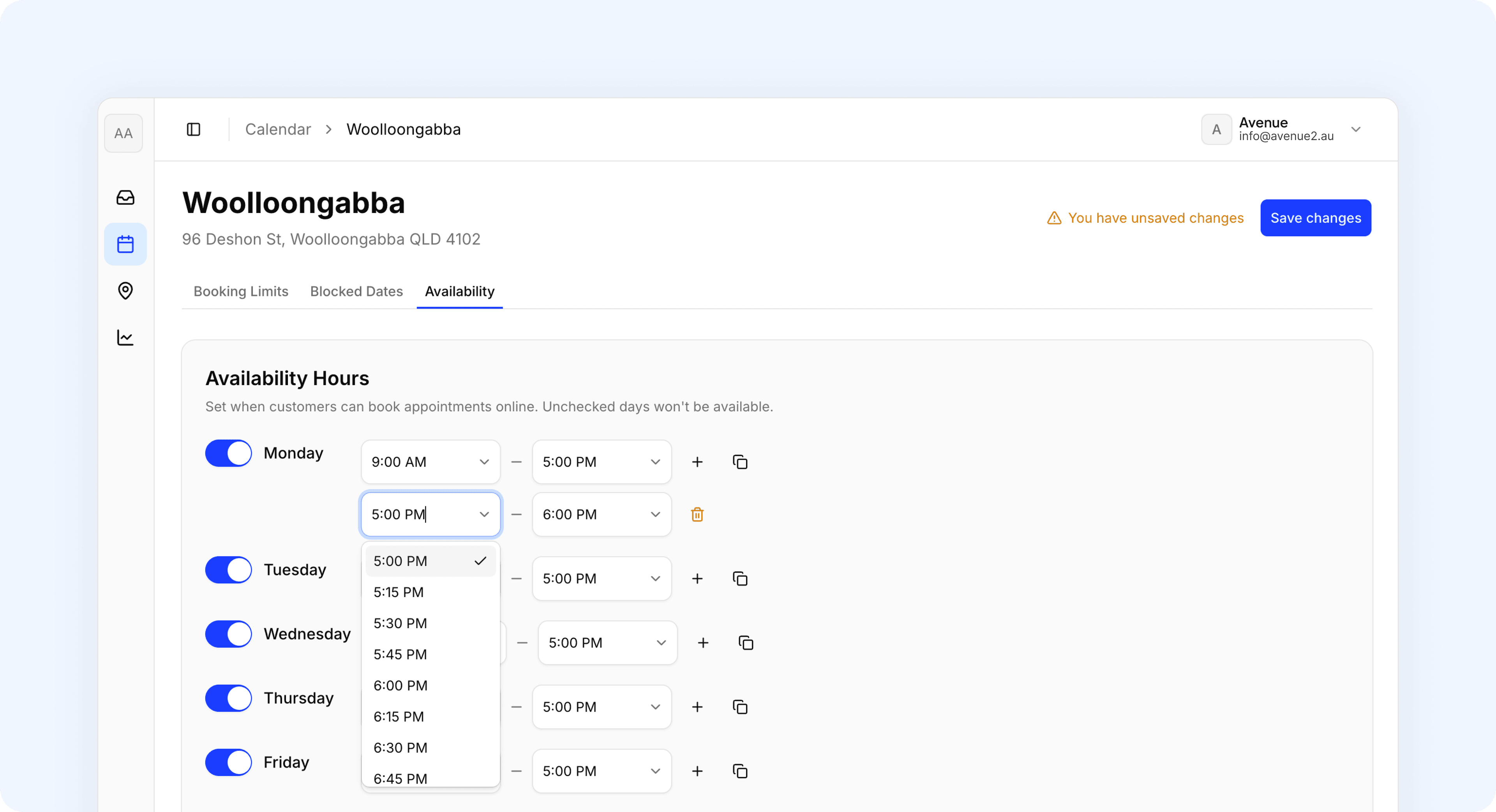
Availability Hours is your regular weekly schedule. Set the days and times your business is open for bookings. Customers can only book appointments during these hours.
Availability Hours
Each day of the week has a toggle. Turn on the days your business is open. Turn off any days you're closed. Customers won't see closed days as bookable.
For one-off changes:
- Use Blocked Dates to close specific dates
- Use Booking Limits to reduce capacity on certain days
Setting Opening and Closing Times
For each open day, use the dropdowns to set your opening and closing times.
Split Shifts
If your business closes for lunch or has a break mid-day, you can split a day into multiple time ranges. This lets you block out a gap in the middle of the day while keeping morning and afternoon slots available.
- Find the day you want to split
- Click add range (+) button on that day
- Set the second range to your afternoon hours
- Click
Save Changes
Copy Hours to Other Days
If several of your days have the same hours, use the copy button to apply one day's settings to other days without re-entering the times manually.
- Set up the hours for one day (e.g. Monday)
- Click the copy button next to that day
- Select the other days you want to copy to (e.g. Tuesday, Wednesday, Thursday, Friday)
- Click
ApplythenSave Changes
Removing a Time Range
- Find the time range you want to remove
- Click the trash icon (🗑️) next to that range
- Click
Save Changes
Time Slot Intervals
Control how often appointment times appear on your booking form. This determines the spacing between available time slots customers can select.
How It Works
Choose an interval from 15 to 120 minutes. This sets how frequently time slots appear throughout your available hours.
| Interval | Example time slots |
|---|---|
| 15 minutes | 9:00, 9:15, 9:30, 9:45, 10:00... |
| 30 minutes | 9:00, 9:30, 10:00, 10:30, 11:00... |
| 45 minutes | 9:00, 9:45, 10:30, 11:15, 12:00... |
| 60 minutes | 9:00, 10:00, 11:00, 12:00, 1:00... |
| 90 minutes | 9:00, 10:30, 12:00, 1:30, 3:00... |
| 120 minutes | 9:00, 11:00, 1:00, 3:00, 5:00... |
Setting Your Interval
- Navigate to Calendar Settings > Availability > Time-slot Intervals
- Find the Time Slot Intervals section
- Select your preferred interval from the dropdown
- Click
Save Changes
Note: When you change the interval, your existing availability hours automatically adjust to match. Opening times round down (earlier) and closing times round up (later) to prevent blocking availability.
Support
Contact Avenue support at info@avenue2.au if you need help configuring your hours.