
Blocked Dates
Close your business on specific dates, including public holidays and custom closures
Managing Blocked Dates
Blocked Dates let you mark specific dates as closed, regardless of your usual Availability Hours. Use them for public holidays, annual leave, staff training days, or any other one-off closure.
Public Holidays
Avenue automatically loads Australian public holidays based on your business's state. Each public holiday has a toggle:
- Toggle ON = Your business is closed on this holiday
- Toggle OFF = Your business is open on this holiday
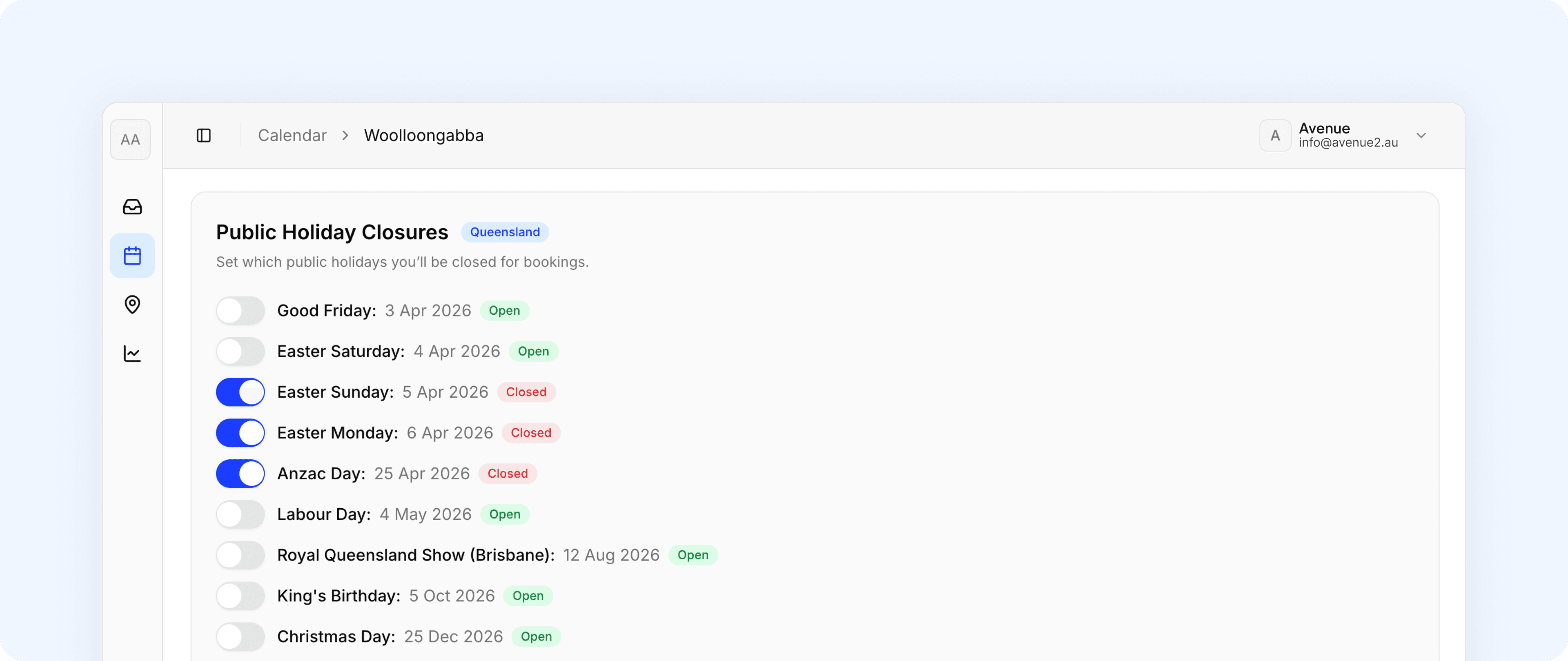
Closing business for Public Holidays
- Review the list of public holidays for your state
- Toggle on the holidays you want to close for
- Click
Save Changes
Customers won't be able to book on holidays you've toggled on.
Opening on a Public Holiday
If you want to accept bookings on a specific holiday:
- Find the holiday in the list
- Toggle it off
- Click
Save Changes
That date will become available for customer bookings.
Custom Block Dates
For closures that aren't public holidays, you can add custom blocked dates. Use these for annual leave, staff training days, or one-off closures.
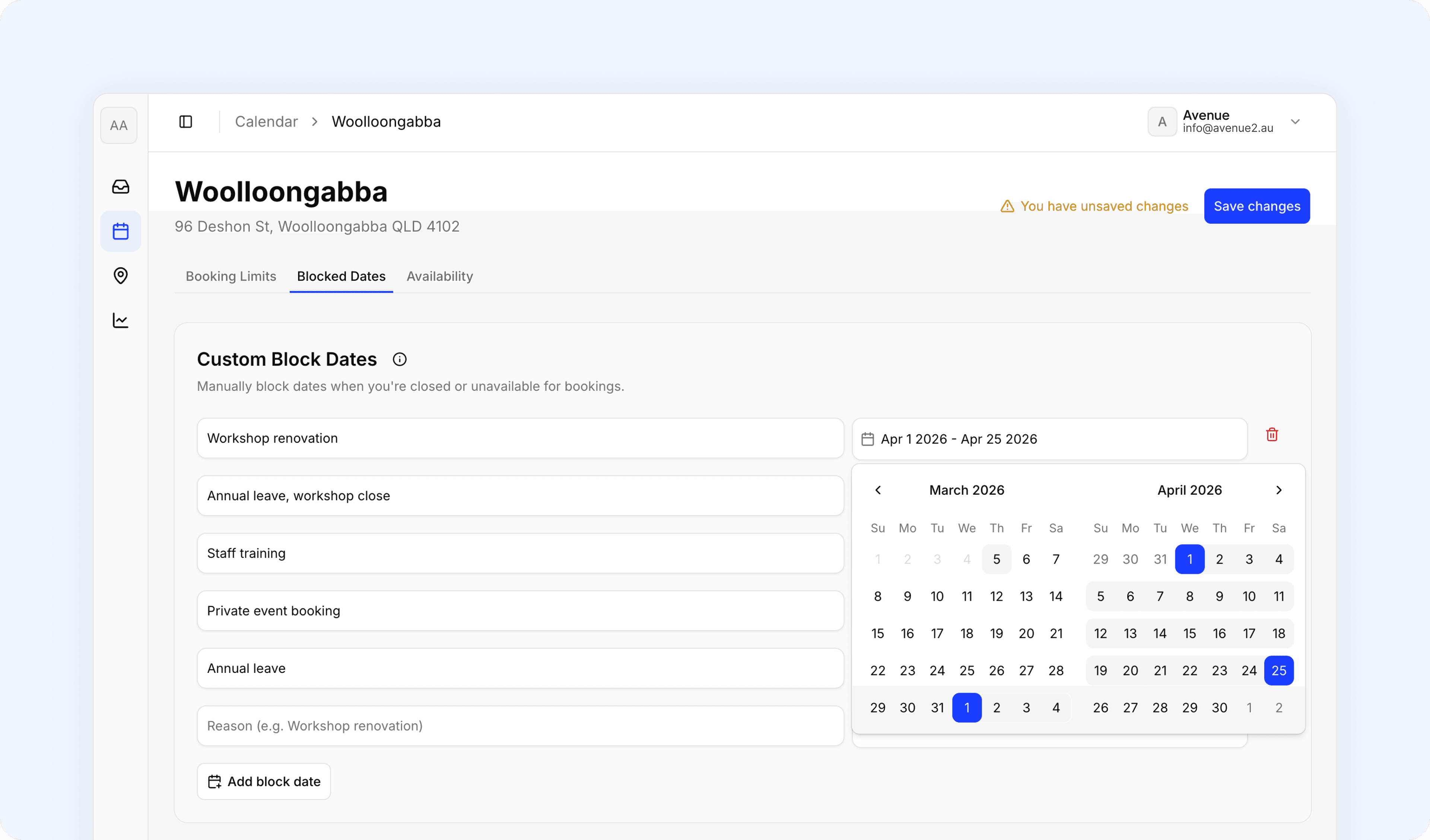
Adding a Block Date
- In the Custom Block Dates section, click
+ Add block date - Enter a title. Example: "Doctor's appointment"
- Select your date:
- Single date: Click the date picker and select one date
- Date range: Select a start date and end date
- Click
Save Changes
Note: The title is for your reference only. Customers won't see it.
About Recurring Closures
Blocked dates don't repeat automatically. For annual closures like end-of-year shutdowns, you'll need to add them each year. Public holidays update automatically once you've selected your state.
Deleting a Custom Block Date
- Find the blocked date in your list
- Click the trash icon (🗑️) next to it
- Click
Save Changes
The date becomes available for bookings again.
Support
Contact Avenue support at info@avenue2.au if you need help managing your blocked dates.